Google finally adding AI Performance Reports in Search Console. As a WordPress developer, this is useful for understanding how your pages show up in AI-driven search features, so you can optimise content accordingly.
https://t.co/75J4JZ5grU
Looks like the Core Update for May/June finished rolling out - are you seeing any impact?
We're still analyzing here.... but will have more to share soon.
This is a real screenshot from Google's new Search Generative AI performance report in Search Console
Importantly, they didn't include "Clicks" because—presumably—they don't want you to see how little traffic they send
The instant sandbox demo option we see for many #WordPress plugins (for pre-sales testing) is an awful sales experience. Don't do it.
But if you do, make sure it doesn't instantly result in a message like this. 😬😅
Just gave Albert by @mark_jansen a try. It's a plugin to turn your WordPress site into a MCP server so that your AI agents can read from it and manage it.
Was using WP CLI over SSH before, but it's not fun managing scoped permissions that way. Albert makes that easy. It uses the abilities API and you can specify exactly what actions it is allowed to take, so you can be sure it does not accidentally perform a destructive action.
One of the hardest parts of switching form plugins isn't rebuilding forms.
It's moving the data.
Forms can be recreated.
Years of submissions are harder to replace.
The new Entry Importer in WPForms solves a problem I've seen many site owners worry about during migrations.
You can import entries from CSV files or migrate submissions from other WordPress form plugins with field mapping and validation built in.
What stood out to me was the focus on reducing migration risk:
• Automatic field matching
• Data validation during import
• Progress tracking
• Failed entry reporting
Features like these make migrations less stressful because you can verify what happened instead of hoping everything imported correctly.
Good migration tools aren't exciting.
They're valuable because they make change possible.
This is exactly what's happening.
Gmail, Yahoo, and Microsoft are now all rejecting unauthenticated emails. Default PHP mail() has no SPF, DKIM or DMARC so forms, receipts and password resets are silently disappearing.
Abhi breaks it down perfectly in this thread with the full timeline and exact requirements.
Fix it with a proper SMTP plugin and authentication records. Usually takes one afternoon.
Fixed a bloated wp_options table that ballooned to 4.55 MB. Cleaned transients and old plugin junk, added Redis, and dropped load time dramatically. Now at 308 KB. Run "wp db size --tables" on your site.
A few months ago I realized my WordPress site was hiding a performance problem.
The front-end scores looked fine, but the database was quietly slowing everything down.
A quick audit showed my wp_options table had grown to 4.55 MB. It should have been under 800 KB.
Autoloaded options were adding 4.41 ms to every single page request.
I found orphaned transients from my own plugin, leftover data from deactivated plugins, and SAVEQUERIES still enabled in wp-config.php.
I cleaned up the bloat, optimized the table, installed Redis Object Cache, and updated my deployment pipeline to flush Redis after every push.
The results were immediate:
- wp_options dropped from 4.55 MB to 308 KB
- Autoload query time fell from 4.41 ms to 0.8 ms
- Page loads feel noticeably faster and deployments are now rock solid
Most WordPress performance issues on VPS servers hide in the database long before users notice them.
If you run WordPress on DigitalOcean or any VPS, start with one simple command:
wp db size --tables
It takes seconds and can reveal problems that have been growing for months.
A few months ago I realized my WordPress site was hiding a performance problem.
The front-end scores looked fine, but the database was quietly slowing everything down.
A quick audit showed my wp_options table had grown to 4.55 MB. It should have been under 800 KB.
Autoloaded options were adding 4.41 ms to every single page request.
I found orphaned transients from my own plugin, leftover data from deactivated plugins, and SAVEQUERIES still enabled in wp-config.php.
I cleaned up the bloat, optimized the table, installed Redis Object Cache, and updated my deployment pipeline to flush Redis after every push.
The results were immediate:
- wp_options dropped from 4.55 MB to 308 KB
- Autoload query time fell from 4.41 ms to 0.8 ms
- Page loads feel noticeably faster and deployments are now rock solid
Most WordPress performance issues on VPS servers hide in the database long before users notice them.
If you run WordPress on DigitalOcean or any VPS, start with one simple command:
wp db size --tables
It takes seconds and can reveal problems that have been growing for months.
A standard contact form tells you almost nothing about the person who just filled it out. 🤷
A name. An email. That's it.
Are they ready to buy? Just browsing? Not even a real fit? You have no idea, and your follow-up emails end up generic for everyone.
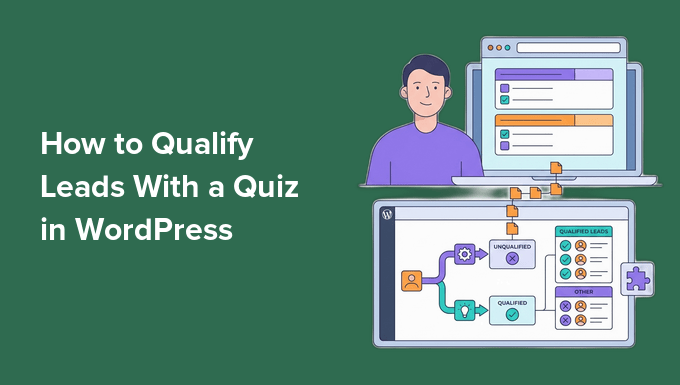
Here is a smarter approach: replace the contact form with a quick quiz that filters every lead into hot, warm, or cold before they ever hit your inbox.
We use this exact system on WPBeginner's hosting quiz, and it changes everything about how we follow up.
Here is what you will learn:
🎯 Why Quizzes Beat Contact Forms: 200 quiz takers will outperform 1,000 random email captures, every time. A quiz acts like a filter, not a net.
🔥 Define Your Hot, Warm, and Cold Leads: Before building anything, write out what each lead temperature actually means for YOUR business. This single step is where most quizzes fail.
⚡ Readiness Signals > Budget Signals: Someone saying "I need this in 2 weeks" is a hotter lead than someone with a big budget and no urgency. Build your scoring around timeline, problem complexity, and decision authority.
📋 Install WPForms (@easywpforms) + Quiz Addon: The only tool you need. Drag-and-drop builder, native conditional logic, and direct integrations with Mailchimp, Brevo, ActiveCampaign, AWeber, and Constant Contact.
✍️ Write 4-6 Readiness Questions: Multiple choice, dropdown, and checkbox fields work best. Keep it short enough to avoid drop-off but long enough to actually learn something useful.
🎯 Use a 0-100 Scoring Scale: Assign higher points to readiness signals. Hot = 75+. Warm = 40-74. Cold = under 40. Clean math, no overlap.
🎨 Build 3 Different Outcome Screens: Hot leads get a direct CTA (e.g., "Book a call"). Warm leads get a useful guide. Cold leads get educational content with no pitch.
📧 Add the Optin Gate: Place name + email fields after the questions but before the result. Visitors who already invested 4 questions of effort are far more likely to share their email to see their result.
🔀 Route Leads With Conditional Connections: Create 3 separate connections in your email tool. Tag hot leads quiz-hot, warm leads quiz-warm, and cold leads quiz-cold. Each tag triggers a different email sequence automatically.
📊 Analyze and Tune After 50-100 Entries: Target distribution should be roughly 20-30% hot, 40-50% warm, 20-30% cold. If everyone scores hot or no one does, your thresholds need adjusting.
🚨 Spot Leaky Questions: Add the Form Abandonment Addon to see exactly which question is causing drop-off. Questions about phone numbers and revenue figures are usually the worst offenders.
🧪 A/B Test Your First Question: It is the biggest drop-off point in any quiz. Test a readiness opener vs. a goal opener and see which gets better completion rates.
Ready to stop wasting time on bad leads and let your quiz do the qualifying for you? Read the full step-by-step guide 👇
(Link is in the thread below)
Excited to introduce Uncanny Agent, the first true AI assistant built natively for WordPress. 🚀
Here's a problem it solves.
You meant to write. But then yesterday's orders needed checking. A landing page needed updating before tomorrow's promo. A form needed connecting to your email list.
An hour disappears before you've written a single sentence.
What if you could just ask your AI assistant in WordPress dashboard to handle all of that for you?
Imagine opening your dashboard and just asking:
"How many orders came in yesterday?" → Answered.
"Update my About page to mention our new location." → Done.
"When someone fills out my contact form, send me a Slack message and add them to my newsletter." → Set up.
All from a single line of plain English.
Here is what makes Uncanny Agent different:
💬 Ask Your Site Anything: Since Agent has direct access to your WordPress data, answers are accurate to the second. No more digging through three plugin dashboards or exporting CSVs into a spreadsheet.
✍️ Get Real Work Done in One Request: Draft posts with featured images, update product descriptions, format content, even generate code snippets for your theme. Tasks that used to take 10+ clicks now happen in a single conversation.
⚡ Build Automations Without a Recipe Builder: Just describe the workflow you want in one sentence. Agent builds the automation. You review, save, done. No more mapping triggers, actions, and conditions one by one.
🔗 Built on a Mature Engine: Uncanny Automator has been the WordPress automation standard since 2020, with 50,000+ active sites. It already connects WooCommerce, Slack, Zoom, Mailchimp, Google Sheets, OpenAI, and the rest of your stack. Agent is the AI layer sitting on top of that proven foundation.
💰 One Platform, One Subscription: A typical AI + automation stack (Zapier + ChatGPT) costs $40-$70/month and the tools don't even talk to each other. Uncanny Agent starts at just $25/month on the AI + Automation Pro plan, all built into one platform that actually knows your site.
🌐 Why It Works Better Than ChatGPT for WordPress: Most AI chatbots can only talk about WordPress in generic terms. They can't tell you which products sold best last week or which WooCommerce orders are pending. Agent can, because it lives inside your site and reads your actual data.
Think of it as having a senior WordPress operator on call 24/7 for your site.
Start with the free Uncanny Automator (@automatorplugin) plugin, upgrade when you're ready, and have your first AI assistant running inside WordPress in under 10 minutes.
Ready to stop drowning in WordPress admin work and let AI handle the busywork? Try Uncanny Agent today 👇
(Link is in the thread below)
I swear Google is forcing me to reauthenticate over and over, forcing me to use the YouTube app to confirm, solely to try to sell me on YouTube Premium.
what if editing template parts and synced patterns in WordPress happened where you are, instead of porting you off to another view just to find your way back?
there are better ways to indicate whether something is synced or not, other than opening an isolated view.
Most websites don’t have a lead problem.
They have a friction problem.
Traffic comes in but inquiries don’t follow.
The offer is solid.
The design looks fine.
But contacting the business takes more effort than it should.
No visible form.
Buried contact page.
Email-only communication.
Every extra step reduces intent.
A simple, reliable contact form removes that friction at the exact moment interest is highest.
That’s why I often end up using WPForms on WordPress sites I work on.
It keeps the setup simple and reduces the chances of broken or missed submissions.
Less friction. Better conversions.
Day 37/100: Fixing Your Website. 🚀
Add a cool magnifying effect to your WordPress website for free and customize it to your liking!
Here's how to set it up using WPCode:
1. Install @wpcodelibrary: This free code snippet plugin is available in the WordPress repository. Find the link in the description and pinned comments.
2. Add a Snippet:
- Go to Code Snippets and click Add Snippet.
- Search for "magnify" to find the magnifying effect snippet.
3. Customize the Effect:
- Adjust the zoom level, glass size, and border size to fit your design.
- Edit these settings directly in the snippet to get the perfect effect.
4. Activate and View:
- Once satisfied, activate your snippet and clear your cache.
- Enjoy the eye-catching magnifier effect on your site!
Give your visitors an interactive experience with this simple tweak. Check out and enhance your website today.
Follow WPBeginner for more website customization tips!