

Top Tweets for #slackwarelinux

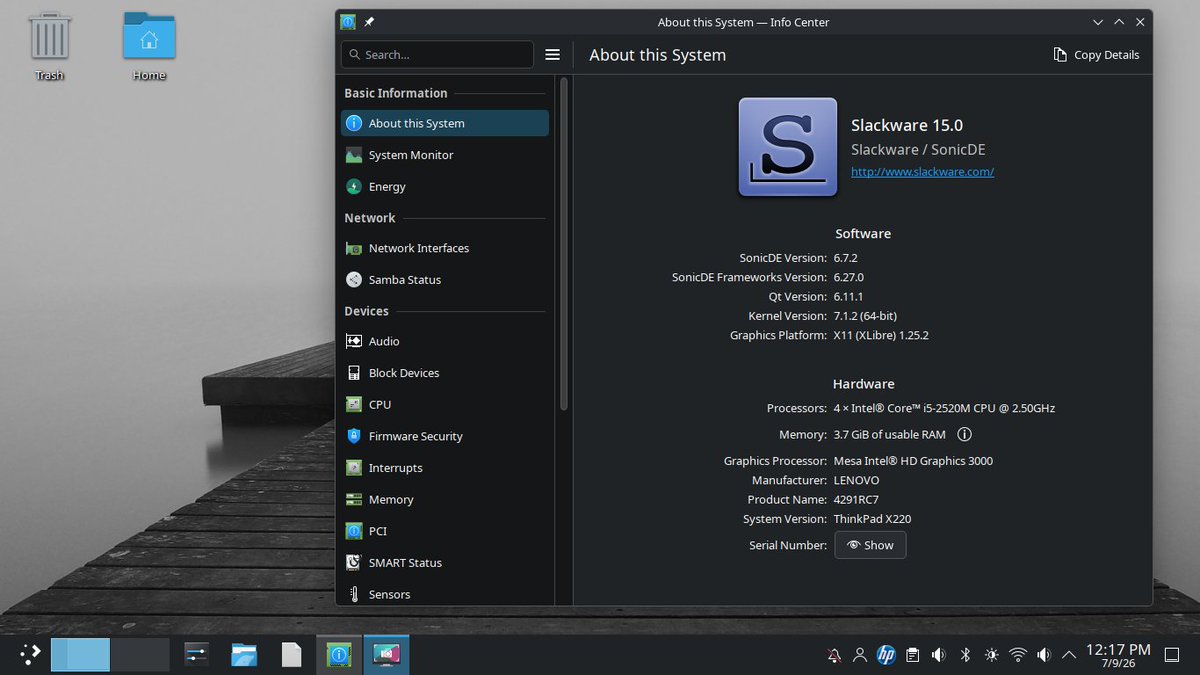
We're happy to announce that the #Slackware Core Team member @r1w1s1 started to create SlackBuilds for #SonicDE. Please check them out at https://t.co/yxU9jPxGpa. You're also welcome to provide feedback in our chats listed at https://t.co/BiJ06t09L0. #SlackwareLinux

#PorteusLinux #SlackwareLinux #Linux #Nvidia #SanDisk
Porteus 5.0 Cinnamon – Part 3: Booting the new Fat32 & Ext4 USB's Porteus 5.0 installation
https://t.co/0968r6G2GR
This is Part 3 of this Porteus v5.0 series, and I am sorta gearing the series towards MS Windows users, but still mindful of interested Linux users. I have been using Porteus Linux since March of 2022, but have found it to be the most interesting Linux OS I have ever used (since 1996), and it has already become my favorite ‘Working‘ Linux OS. I had been using the Porteus 5.0rc3 until Porteus 5.0 was released on July 3rd, 2022. The 5.0 release candidate 3 was fine, but the Porteus 5.0 final release has been smoother ‘n snappier than 5.0rc3 was. Porteus’ Developers/Team have done an excellent job!
In Part 1 we covered creating a fat32 ‘Live‘ Porteus USB, and then using its GParted app to prep a Target drive.
In Part 2 we prepped a Target drive wid two partitions – a 360 MiB fat32 partition & an 114.26 GiB ext4 partition. Then we used the EFI, boot, and porteus folders – located on that fat32 ‘Live‘ Porteus USB to create the new Porteus 5.0 Cinnamon installation that had a fat32 ‘n an ext4 partition.
This was the best method I could come up w/ for any interested MS Windows users, who might not have access to apps for creating ext4 formatted partitions.
Quick Porteus info
Here is the Official Porteus Installation Guide. Their Forum is probably the best source for quick and helpful information. Here is the actual Porteus Home page.
Username for root is root and password is toor. User name for guest is guest and password is guest.
First Boot Up
My guide is for creating a Fulltime Linux Root User Porteus OS. I can’t stand annoying “Authenticate” popups or other ‘Pesky Passwords’ requirements. What are “Authenticate” popups? They show up looking for your password when you try to do something w/o ‘Their‘ permission:
(see post for pics & links)
Don’t ever let an Operating System ‘Bully‘ or intimidate you! 😉 This option may be a tad ‘Tricky‘ at first, so don’t worry if you end up at the TTY console.
One more time:
At that Graphical window, ‘Press Tab to edit options‘ so you can login as root during bootup.
After hitting the [Tab] key an “edit options” pops up at bottom of Graphical menu screen. I don’t have a pic of it, but it’s like a wide ‘n thin terminal where you can type into. Press the [Space] key, which opens a space between the text in that edit option line – probably next to something like: /boot/syslinux/vmlinux changes =/porteus initrd=/boot/syslinux/initrd.xz – you want one space between .xz and login=root text you will type in.
Example: /boot/syslinux/vmlinux changes =/porteus initrd=/boot/syslinux/initrd.xz login=root
As a Fulltime Linux Root User on all my ‘Computers‘, I go to the porteus.cfg file after First boot into the new desktop, and add the login=root there, so from now on it will automatically boot into the desktop.
Editing the porteus.cfg file
The Graphical menu options are fine to have around, but I just want to automatically boot into the desktop as root after that First Boot Up. To achieve that objective, we’re going to open 3 new windows: 1) that 377 MB fat32 partition (sda1 for me). 2) then the boot folder. 3) then the syslinux folder. Like this:
(pic)
Look for the “INITRD” line, hit [Space] key at the end of that line, and then add login=root to it. Double-check that you have it right, then save it, then click close and exit the window. Reboot, and the system should now automatically boot into the desktop from now on. \o/ ‘Hippity hip Hoorah‘ \o/
(NOTE: Porteus actually recommends that login=root cheat-code be added to the “APPEND” line – just below the “INITRD” line, but I have done it both ways.)
![KarmiTux's tweet photo. #PorteusLinux #SlackwareLinux #Linux #Nvidia #SanDisk
Porteus 5.0 Cinnamon – Part 3: Booting the new Fat32 & Ext4 USB's Porteus 5.0 installation
https://t.co/0968r6G2GR
This is Part 3 of this Porteus v5.0 series, and I am sorta gearing the series towards MS Windows users, but still mindful of interested Linux users. I have been using Porteus Linux since March of 2022, but have found it to be the most interesting Linux OS I have ever used (since 1996), and it has already become my favorite ‘Working‘ Linux OS. I had been using the Porteus 5.0rc3 until Porteus 5.0 was released on July 3rd, 2022. The 5.0 release candidate 3 was fine, but the Porteus 5.0 final release has been smoother ‘n snappier than 5.0rc3 was. Porteus’ Developers/Team have done an excellent job!
In Part 1 we covered creating a fat32 ‘Live‘ Porteus USB, and then using its GParted app to prep a Target drive.
In Part 2 we prepped a Target drive wid two partitions – a 360 MiB fat32 partition & an 114.26 GiB ext4 partition. Then we used the EFI, boot, and porteus folders – located on that fat32 ‘Live‘ Porteus USB to create the new Porteus 5.0 Cinnamon installation that had a fat32 ‘n an ext4 partition.
This was the best method I could come up w/ for any interested MS Windows users, who might not have access to apps for creating ext4 formatted partitions.
Quick Porteus info
Here is the Official Porteus Installation Guide. Their Forum is probably the best source for quick and helpful information. Here is the actual Porteus Home page.
Username for root is root and password is toor. User name for guest is guest and password is guest.
First Boot Up
My guide is for creating a Fulltime Linux Root User Porteus OS. I can’t stand annoying “Authenticate” popups or other ‘Pesky Passwords’ requirements. What are “Authenticate” popups? They show up looking for your password when you try to do something w/o ‘Their‘ permission:
(see post for pics & links)
Don’t ever let an Operating System ‘Bully‘ or intimidate you! 😉 This option may be a tad ‘Tricky‘ at first, so don’t worry if you end up at the TTY console.
One more time:
At that Graphical window, ‘Press Tab to edit options‘ so you can login as root during bootup.
After hitting the [Tab] key an “edit options” pops up at bottom of Graphical menu screen. I don’t have a pic of it, but it’s like a wide ‘n thin terminal where you can type into. Press the [Space] key, which opens a space between the text in that edit option line – probably next to something like: /boot/syslinux/vmlinux changes =/porteus initrd=/boot/syslinux/initrd.xz – you want one space between .xz and login=root text you will type in.
Example: /boot/syslinux/vmlinux changes =/porteus initrd=/boot/syslinux/initrd.xz login=root
As a Fulltime Linux Root User on all my ‘Computers‘, I go to the porteus.cfg file after First boot into the new desktop, and add the login=root there, so from now on it will automatically boot into the desktop.
Editing the porteus.cfg file
The Graphical menu options are fine to have around, but I just want to automatically boot into the desktop as root after that First Boot Up. To achieve that objective, we’re going to open 3 new windows: 1) that 377 MB fat32 partition (sda1 for me). 2) then the boot folder. 3) then the syslinux folder. Like this:
(pic)
Look for the “INITRD” line, hit [Space] key at the end of that line, and then add login=root to it. Double-check that you have it right, then save it, then click close and exit the window. Reboot, and the system should now automatically boot into the desktop from now on. \o/ ‘Hippity hip Hoorah‘ \o/
(NOTE: Porteus actually recommends that login=root cheat-code be added to the “APPEND” line – just below the “INITRD” line, but I have done it both ways.)](https://pbs.twimg.com/media/F0nrNMsXsAMpIK_.jpg)

Live now is #LinuxSaloon. We are talking #SlackwareLinux and this may not be our most enjoyable exploration but it is an interesting one for sure.
https://t.co/6QkIW4zK9l

DeskCut Helps You to Create Linux Desktop Shortcuts with Ease. https://t.co/QE9QxGDxp1 An easy to use app that lets you create Desktop Shortcuts on Linux without requiring to mess with .desktop files.... #Linuxdistro #SlackwareLinux

Linux é assim, se cair no mar vira submarino, se jogar pro alto vira satélite e se tiver terra é tanque de guerra. #SlackwareLinux #Linux


#GNULinux
Le site officiel du projet #SlackwareLinux a récemment annoncé le lancement d’une campagne d’appel au don. #Slackware, c'est un noyau solide, nécessitant très peu de maintenance, sur lequel sont installés des paquets à jour !
https://t.co/NUkIqVHA7m

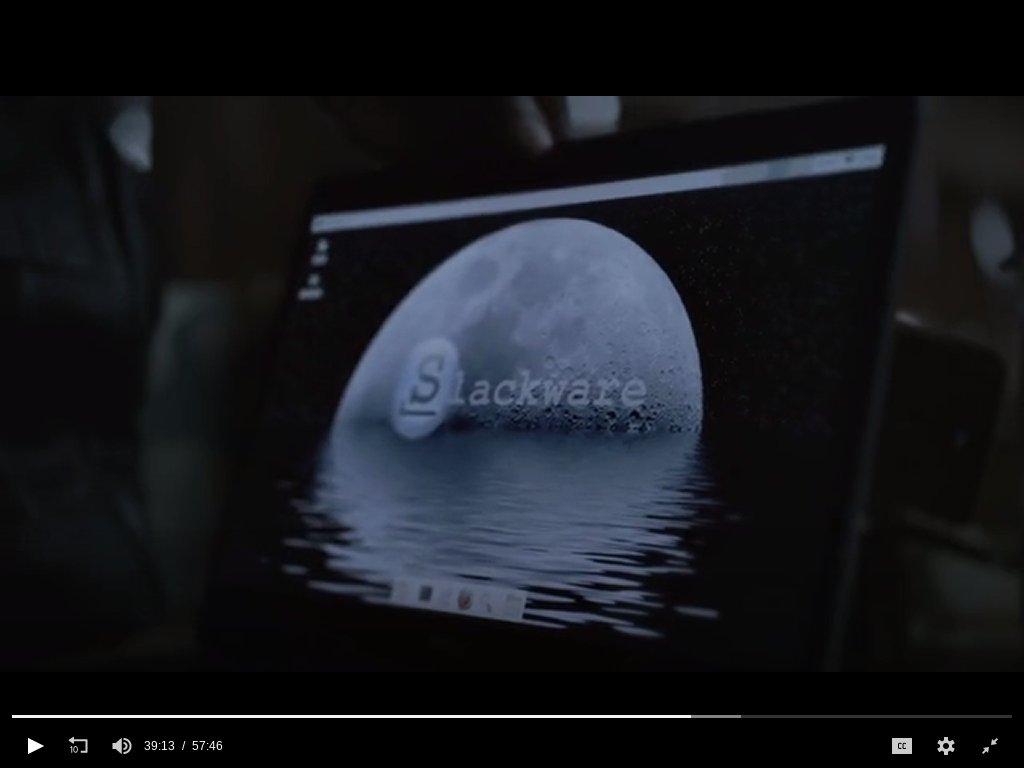
#SlackwareLinux en MrRobot 3.0... <3 ^_^

Un ouvrage pour « Débuter avec Linux »
https://t.co/AMgzFt9fAi
#Linux #SlackwareLinux #Apprentissage #Formation #AutoFormation #OpenSource


o mais legal é que quem vem do #slackwarelinux quando usa algo tipo o #opensuse dá mais valor ao quanto essa distro é facilitadora. parabens
Aquele momento que você percebe que existe um jedi tomando conta dos seus pen drives com linux #slackwarelinux


Last Seen Hashtags on Sotwe
RomanianGoddesses
jamaicansex
Seen from Canada
Teenage video*
Seen from Turkey
momson
Seen from Turkey
celebrityai
Seen from Turkey
TCMFF
Seen from United States
trans #ebony #nsfw
Seen from Brazil
daisytaylor
Seen from Turkey
bait
Seen from Canada
momson()***************************** +filter:videos
Seen from Mexico
Trends for you
Most Popular Users

Elon Musk 
@elonmusk
241M followers

Barack Obama
@barackobama
119.2M followers

Cristiano Ronaldo
@cristiano
111.8M followers

Donald J. Trump
@realdonaldtrump
111.8M followers

Narendra Modi
@narendramodi
107M followers

Rihanna
@rihanna
98M followers

NASA
@nasa
92.2M followers

Justin Bieber
@justinbieber
91.2M followers

KATY PERRY
@katyperry
88.3M followers

Taylor Swift
@taylorswift13
82.2M followers

Lady Gaga
@ladygaga
73.7M followers

Virat Kohli
@imvkohli
71M followers

Kim Kardashian
@kimkardashian
70.1M followers

YouTube
@youtube
68.7M followers

Bill Gates
@billgates
64.3M followers

Neymar Jr
@neymarjr
63.8M followers

The Ellen Show
@theellenshow
62.4M followers

CNN
@cnn
61.8M followers

Selena Gomez
@selenagomez
61.4M followers

X
@x
60.8M followers