@ek_ajnabi24@CitizenKamran Thats wht encryption is for dumbass.
They can't read ur chats. If they can't read they can't sell.
Also its fucking govt u should be worried about.
Companies just fucking wan to sell u products and make money.
One of my favorite Eisenhower quotes...
"Leadership is the art of getting someone else to do something you want done because he wants to do it."
There are only 4 reasons your team doesn't do what you ask:
1. You haven’t told them what you want
2. They didn’t understand it
3. They don't think it's a good idea
4. They don't see what's in it for them
Do all four and you won't have to ask twice.
be shameless.
post the thing. start the account. wear the outfit. ask the stupid question. apply for the job you think you’re underqualified for. build the weird little idea that might go nowhere. say what you mean. let yourself be bad at something before you become good at it.because sometimes the fear of looking stupid is just another way of saying you’re afraid to be seen trying. and that fear can keep you stuck in the exact same place for years.i’d rather spend my twenties trying too many things, changing my mind, failing loudly and occasionally looking ridiculous than spend them carefully protecting a reputation i never actually had :)
Concepts everyone should understand:
— Schelling point
— Ergodicity
— Social signaling
— Incentive
— Mimetic desire
— Randomness
— Power law
— Cognitive biases
— Antifragility
— Momentum
— Zero-sum game
What else?
50 Ideas That Shaped My Thinking
1. Inversion: Avoiding stupidity is easier than trying to be brilliant. Instead of asking, “How can I help my company?” you should ask, “What’s hurting my company the most and how can I avoid it?” Identify obvious failure points, and steer clear of them.
2. Doublespeak: People often say the opposite of what they mean, especially in political language. It allows people to lie while looking like they’re telling the truth. As George Orwell famously wrote in 1984, “War is peace. Freedom is slavery. Ignorance is strength.”
3. Theory of Constraints: A system is only as strong as its weakest point. Focus on the bottleneck. Counterintuitively, if you break down the entire system and optimize each component individually, you’ll lower the effectiveness of the system. Optimize the entire system instead.
4. Preference Falsification: People lie about their true opinions and conform to socially acceptable preferences instead. In private they’ll say one thing. In public, they’ll say another.
5. Faustian Bargain: A man once sold his soul to a demon in exchange for knowledge. At first, it seemed like a smart trade. But the man lost in the long-run. Tragically, what the man lost was more valuable than what he earned. In short, he won the battle but lost the war.
6. Mimetic Theory of Desire: Humans are like sheep. We don’t know what we want, so we imitate each other. Instead of creating our own desires, we desire the same things as other people. The entire advertising industry is built on this idea.
7. Mimetic Theory of Conflict: People who are similar are more likely to fight than people who are different. That’s why Civil Wars and family feuds create the worst conflicts. The closer two people are and the more equality between them, the greater the potential for conflict.
8. Talent vs. Genius: Society is good at training talent but terrible at cultivating genius. Talented people are good at hitting targets others can’t hit, but geniuses find targets others can’t see. They are opposite modes of excellence. Talent is predictable, genius is unpredictable.
9. Competition is for Losers: Avoid competition. Stop copying what everybody else is doing. If you work at a for-profit company, work on problems that would not otherwise be solved. If you’re at a non-profit, fix unpopular problems. Life is easier when you don’t compete. (Hint: don’t start another bottled water company).
10. Secrets are Hidden in Plain Sight: Most people think of secrets as Easter eggs. They assume that if a secret is important, it’s necessarily going to be hard to find. The best ideas can come from things that are so well-known that they aren’t well-seen.
11. The Never-Ending Now: The structure of our social media feeds blinds us to history, as it causes us to live in an endless cycle of ephemeral content consumption. The structure of the Internet pulls people away from age-old wisdom.
12. Demand Curves Slope Down: The harder something is to do, the fewer people will do it. For example, raise the price of a product and fewer people will buy it. Lower the price and more people will buy it. Economics 101.
13. Look for Things That Don’t Make Sense: The world always makes sense. But it can be confusing. When it is, your model of the world is wrong. So, things that don’t make sense are a learning opportunity. Big opportunities won’t make sense until it’s too late to profit from them.
14. The Wisdom of Paradox: Logic is the key to scientific truths, but paradoxes are the key to psychological ones. When it comes to the human condition, the deepest truths are often counter-intuitive. When you find two opposites that are both true, start exploring.
15. Law of Shitty Click-Through Rates: Most marketing strategies have a short window of success, as click-through rates decrease as tactics mature. For example, the first banner-ad has a click-through rate of more than 70%. Now we avoid them with ad-blockers.
16. Russell Conjugation: Journalists often change the meaning of a sentence by replacing one word with a synonym that implies a different meaning. For example, the same person can support an estate tax but oppose a death tax — even though they are the same thing.
17. Opportunity Cost: By reading this tweet, you are choosing not to read something else. Everything we do is like this. Doing one thing requires giving up another. Whenever you explicitly choose to do one thing, you implicitly choose not to do another thing.
18. Overton Window: You can control thought without limiting speech. You can do it by defining the limits of acceptable thought while allowing for lively debate within these barriers. For example, Fox News and MSNBC set limits on what political thoughts they consider acceptable, but in the grand scheme of things, they’re both fairly conventional. The political spectrum stretches far beyond the ideas they entertain, but ideas outside their limits are shunned.
19. Planck’s Principle: Science doesn’t progress because people change their views. Rather, each new generation of scientists has different views. As old generations pass away, new ideas are accepted and the scientific consensus changes.
20. Bike-Shed Effect: A group of people working on a project will fight over the most trivial ideas. They’ll ignore what’s complicated. They’ll focus too much on easy-to-understand ideas at the expense of important, but hard to talk about ideas. For example, instead of approving plans for a complicated spaceship, the team would argue over the color of the astronaut’s uniforms.
21. Table Selection: This idea comes from poker, where you’re advised to choose your opponents carefully. That means you shouldn’t compete against the best people. You don’t need to get good at doing difficult things if you get good at avoiding difficult things. If you want to win, pick an easy table and nail your execution.
22. Goodhart’s Law: When a measure becomes a target, it ceases to be a good measure. One hospital took too long to admit patients so a penalty was given for 4+ hour wait times. In response, ambulance drivers were asked to slow down so they could shorten wait times.
23. Gall’s Law: A complex system that works is invariably found to have evolved from a simple system that worked. A complex system designed from scratch never works and cannot be patched up to make it work. You have to start over with a working simple system.
24. Hock Principle: Simple, clear purpose and principles give rise to complex and intelligent behavior. Complex rules and regulations give rise to simple and stupid behavior.
25. Parkinson’s Law: Work expands to fill the time available. People don’t want to look like they’re lazy, so they find extra tasks to tackle, even if they’re trivial. If you have six months to complete a project, it will take six months to complete. Set deadlines accordingly.
26. The Second Law of Thermodynamics: The world tends towards disorder. That’s why your room becomes messier and messier over time. It’s also why an engine converts only ~35% of its energy into useful work. Time moves towards increasing one direction: increasing entropy.
27. The Paradox of Specificity: Focus isn’t as constraining as it seems. In the age of the Internet, when everybody has Google search and personalized social media feeds, differentiation is free marketing. The more specific your goal, the more opportunities you’ll create for yourself. Narrowing your aperture can expand your horizons.
28. Emergence: When things interact, they often birth new, unpredictable forms. Therefore, the sum total of a system is more than its component parts. As a system evolves, its structure can transform — just like how water becomes cold water until it turns into ice.
29. Occam’s Razor: If there are multiple explanations for why something happened and they are equally persuasive, assume the simplest one is true. In the search for truth, remove unnecessary assumptions. Trust the lowest-complexity answer.
30. Hickam’s Dictum: The opposite of Occam’s Razor. In a complex system, problems usually have more than one cause. For example, in medicine, people can have many diseases at the same time.
31. Hormesis: A low dose of something can have the opposite effect of a high dose. A little bit of stress wakes you up, but a lot of stress is bad for you. Lifting weights for 30 minutes per day is good for you, but lifting weights for 6 hours per day will destroy your muscles. Stress yourself, but not too much.
32. Robustness Principle: Be conservative in what you do, be liberal in what you accept from others. It’s a design guideline for software and a good rule for life: Hold yourself to a higher standard than you hold others to.
33. Legibility: We are blind to what we cannot measure. Not everything that counts can be measured, and not everything that can be measured counts. But people manage what they can measure, so society repeats the same mistakes.
34. Horseshoe Theory: Extreme opposites tend to look the same. For example, a far-right movement and a far-left movement can be equally violent or desire a similar outcome. People on both sides are more similar to each other than they are to people in the center.
35. Availability Cascade: A self-reinforcing cycle that creates collective beliefs. An idea will gain traction once it enters the mainstream, which triggers a chain reaction, which causes lots of people to adopt it not because it’s true but because it’s popular.
36. Creativity Begins at the Edge: Change starts away from the spotlight. Then, it moves towards the center. That’s why the most interesting ideas at a conference never come from the main stage. They come from the hallways and the bar after sunset
37. The Copernican Principle: The more we learn about astronomy, the less it seems that earth is special. It’s a small part of the universe, and each human is a small part of the earth. We are all spinning through the solar system — nowhere near the beginning or end of time.
38. Personal Monopoly: Corporations reward conformity, but the Internet rewards people who are unique. If you work in a creative field, strive to be the only person who does what you do. Find your own style, then run with it. Create intellectual real estate for yourself.
39. The Paradox of Consensus: Under ancient Jewish law, if a suspect was found guilty by every judge, they were deemed innocent. Too much agreement implied a systemic error in the judicial process. Unanimous agreement sometimes leads to bad decisions.
40. Penny Problem Gap: Economists assume demand is linear, but people’s behavior totally changes once an action costs money. If the inventors of the Internet had known about it, spam wouldn’t be such a problem. If sending an email cost you $0.001, there’d be way less spam.
41. The Invisible Hand: Markets aggregate knowledge. Rising prices signal falling supply or increased demand, which incentivizes an increase in production. The opposite is true for falling prices. Prices are a signal wrapped in an incentive.
42. Base Rate: The average outcome for an event over time. They’re like batting averages for life, and they work best with big sample sizes. For example, if you’re starting a business, avoid the restaurant business where margins are low and competition is high.
43. Circle of Competence: Define the limits of your knowledge. Hint: the limits are smaller than you think. That’s because being an expert in one area doesn’t make you an expert in anything else. Be clear about what you know and don’t know.
44. Convexity: If you want to be lucky, look for opportunities with big upsides and low downsides. In addition to increased optionality, your errors will benefit you more than they harm you. Convex payoffs let you tinker your way to success and innovation.
45. The Go-For-It Window: Large gaps between accelerating technologies and stagnating social norms create lucrative new business opportunities. But they are only available for a short time when people can capitalize on the difference between the real and perceived state of the world. For example, 2007 was the perfect time to launch the iPhone, but Google Glasses launched too early.
46. Via Negativa: When we have a problem, our natural instinct is to add a new habit or purchase a fix. But sometimes, you can improve your life by taking things away. For example, the foods you avoid are more important than the foods you eat.
47. The Medium Is the Message: We pay too much attention to what is being said. But the medium of communication is more impactful. For example, the Internet’s impact on humanity has a bigger influence than anything that’s said on the Internet.
48. Resource Curse: Countries with an abundance of natural resources such as diamonds and fossil fuels tend to have less economic growth and worse development than countries with fewer natural resources.
49. The Paradox of Abundance: The average quality of information is getting worse and worse. But the best stuff is getting better and better. Markets of abundance are simultaneously bad for the median consumer but good for conscious consumers.
50. The Map Is Not the Territory: Reality will never match the elegance of theory. All models have inconsistencies, but some are still useful. Some maps are useful because they’re inaccurate. If you want to find an edge, look for what the map leaves out.
51. Baker’s Dozen: The key to good hospitality is to delight your guests with an unexpected gift. If you run a hotel, leave a chocolate on the bed. If you run a bakery, give your customers one extra bagel. If you write a really, really, really, really long tweet... share an extra idea.
Find some mental models below across:
game theory,
network effects,
industry structure,
corporate behavior,
and how companies change form as they grow.
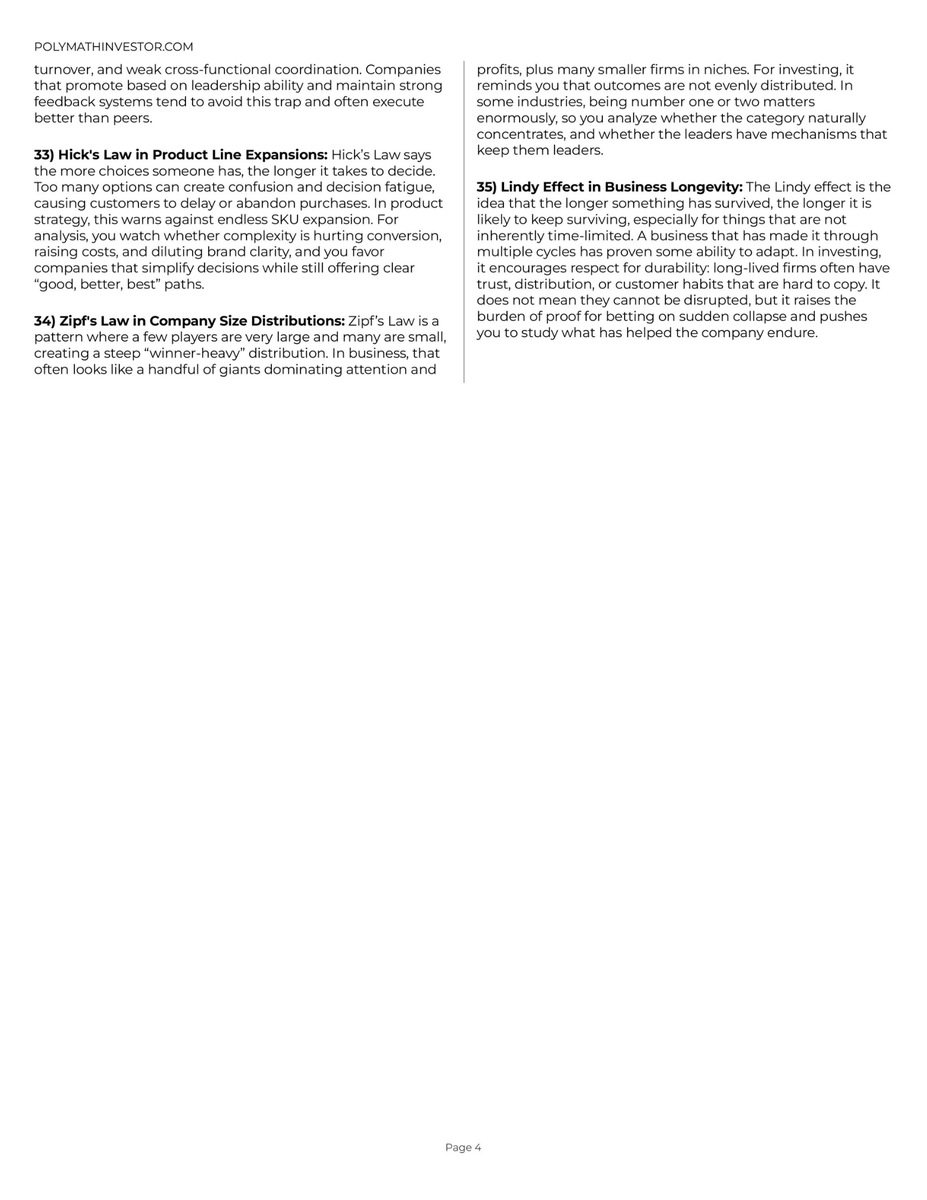
35 in total.
Game theory
Most people are playing the wrong game.
If you want to get rich, there are only 3 games that actually matter.
Everything else is a distraction
Obsessed people only have 6 moods:
1. Act like a psycho
2. Delusionally optimistic
3. Insane sense of urgency
4. Work 10 hours in a flow state
5. Studying patterns of the greats
6. Using game theory
Game theory literally tells you all the things you need to succeed:
1. Reputation. Be the one people want to cooperate with. Fruitless betrayal destroys credibility.
2. Long-term planning. Not everything is a one-off game. Life is iterated. Building relations and networks in the first round yields benefits in the subsequent games.
3. Incentive alignment. Sharing goals and ambitions that can coexist avoids betrayal. But never purely look for shared goals; look for similar ambitions that synergize well.
4. Thinking Recursively. Determine where you want to be in 10 years (the end state). Then, work backward to the present to see which current path actually leads there. Never blindly think forward.
5. Plan around information. Success comes from either reducing asymmetry (being transparent to build trust) or leveraging it to your advantage.
But by far the most important lesson? Becoming a strategist.
Start a hobby-marketing biz.
Huge markets.
High intent.
Low competition.
Cheap CPM.
You can almost literally throw a stone at random. Have it hit a market. And you can become the big dog in that market in 6 months.
Unsophisticated markets.
Trusting buyers.
Easy to deliver.
Before you apply for another creative strategist role, do these 11 things.
We're hiring a creative strategist right now, and after going through 100s of applications, I noticed most of the ones that didn't make the final shortlist were missing a lot, if not all, of what's below.
1. Don't switch off your marketing brain when you apply.
The moment most copywriters apply for a job, they turn off their marketing brain and do what any normal person who doesn't write for a living does:
Submit a resume, add some generic lines about why they should be hired, and press send.
The other half go to the opposite extreme and decide copywriting means adding clever soundbites, taglines or forced humour.
Nobody's buying beautiful writing.
They need to know whether you understand the market, whether you know what the prospect really wants, and whether you can say the right thing at the right time.
2. Don't assume readership. Recruiters read your answers before they read your scripts.
When a job post pulls 100+ applicants, nobody is reading every sample script and portfolio. That would take days.
They'll read some, but to even get there they have to click your link. So in most cases, they just go through the answers on your application. And every touchpoint in that application is a chance to stand out. Here's how…
3. Enter the conversation already happening in the recruiter's head.
Acknowledge the situation and the scenario you're writing into.
The standout application I got was from a girl who said, "I'm sure every applicant is going to do XYZ in their application." She was 100% right. I remembered her application before I even looked at her portfolio.
Because it meant she also understood the awareness level of the reader (where his head is at after going through 50 applications).
And awareness goes hand in hand with sophistication. Which means if someone has seen the same approach again and again, it loses its effectiveness.
4. Drop the clever, clichéd gimmicks just to stand out.
"Don't hire me if you don't want someone hardworking or obsessed."
That might have worked in 2022. It doesn't work now, at least with any company worth working for.
The only context where it can work is when you're listing the specific mistakes other candidates actually make, instead of obvious stuff like being hardworking.
5. Show experience for the exact thing they're hiring for.
Seeing a glimpse of work for the exact type of thing they need increases your chances way more than the bare minimum of sharing whatever you already have.
If they're hiring for ads and you've written those exact kind of ads before, they love it. If your samples are just emails, their first thought is:
“Can they write ads though?”
If you don't have that experience, spend a couple of hours writing a sample for the type of piece they're looking for, so you stand a fair chance.
6. "But I'm applying to 10 jobs a day. How can I write a sample for all of them?"
There are only so many types of creative strategist roles. Have a script ready for the most common ones, so you're automatically among the few people sending the exact type of sample work they're looking for.
You do the groundwork once. After that, it's only a matter of time before you find the role that's right for you.
7. Use AI, but not like everyone else.
There were a bunch of applications that all started with "I know you're not looking for a creative strategist. You're looking for X."
And it's not even followed by a banger argument. It's the same generic thing GPT spewed out.
Marketing 101. If you sound like everyone else, the prospect ignores you.
Use AI to build the specific samples I mentioned above instead.
8. Pre-handle objections in the application itself.
When you've only written for ecom and never for info, the first thought is "Okay, but can he do it for info?"
That's one objection your application creates. Look at your application and think about other potential objections.
Then pre-handle those.
9. Your claims have to be congruent.
If you say "I have NDAs," you better back it up.
Mentioning NDAs is completely fine. But the recruiter will assume you've worked with legit companies, which means your skills should be decent.
So even without specific samples, your application has to be good enough that the recruiter thinks, “Okay, this guy seems interesting.”
The bigger your claims, the stronger your proof needs to be. Otherwise the prospect just assumes you're full of shit.
10. Let them know you understand the industry.
If it's a direct response role, say you have a direct response background or understand the principles of it. Mention what you've actually read, whether that's Ogilvy, Schwartz or Halbert.
It tells the recruiter straight away that you come from the same school of thought, which means less work for them when they hire you.
11. Don't position yourself as someone you're not.
You don't always have to be the best copywriter in the pool.
If someone is hiring a junior, you're 100% going to beat the person with 5+ years of experience asking $8k a month, because he's out of budget anyway.
Pricing is one part of it. The same applies to your claims, the level you present at, and everything else you mention in your application.
It's the same as selling a product. You're not selling to everyone. You're selling to THE person who needs what YOU have. Here it’s someone looking for the type of creative strategist you actually are.
Buyer's remorse is a thing. Either you fail at the interview, or they hire you and you're fired within a week. Either way, everyone's time gets wasted.
Hope this helps. Try putting some of this into your next few applications and see what changes.
By the way, we're still accepting applications for a content writer / creative strategist role. If you're interested, drop a comment below.
PLEASE do not...
Write copy from scratch.
Writing copy from scratch is like becoming a professional boxer without training.
Like tf? Cmon man.
You must write the entire outer frame from scratch.
Make a list of your:
ICP
Topic
Research
Desire
Concept
Angle
Conclusion
Brain storm this and write all this down seperately.
Than you assemble all of this into a piece of copy (Hook, Body, CTA).
Than you run these words into a paid ad.
What your customers will read is the inner frame.
In there POV.
You just assembled all of the outer frame into a piece of copy to match the assembly of their inner frame (desires, angles, concept etc).
That's all.
Not speed, just timing.
Research beats power and concept beats speed all day of the week.
AI proves the best point about copywriting.
The words you use are practically irrelevant. It’s all about the THINKING behind the words.
The big idea. Mechanism. Positioning.
Get those right and AI can pump out copy that sell. Regardless of the words it uses. Get them wrong? No words will save you.