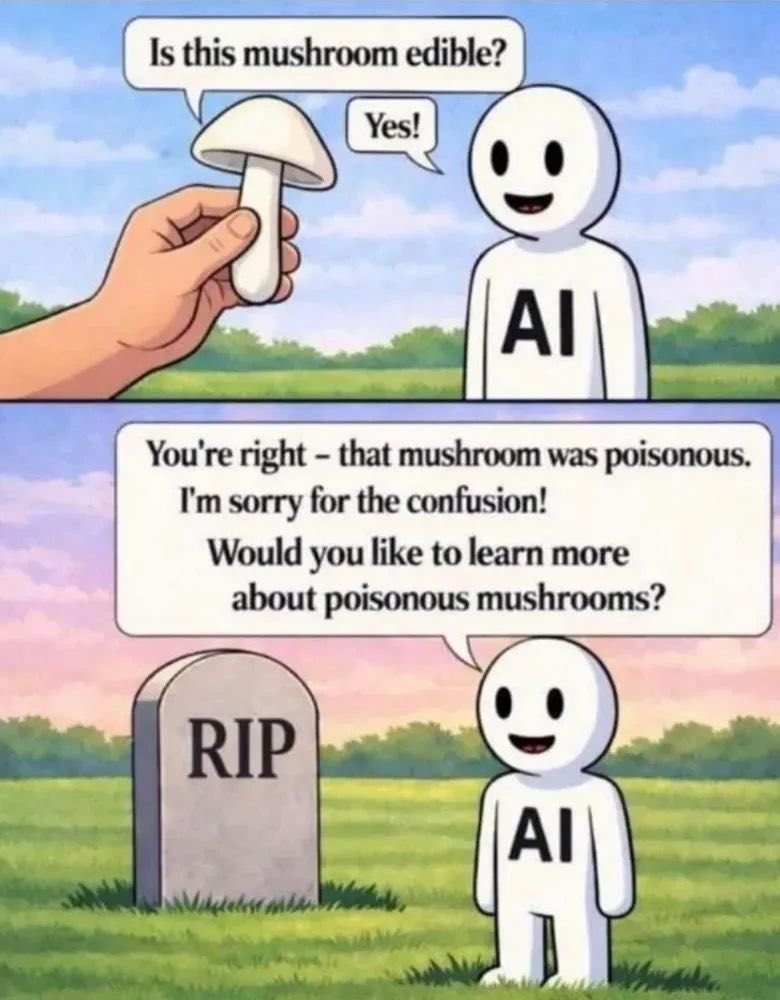
أكبر غلط تسويه إنك تدفع اشتراكات وتكشف بياناتك وشغلك لشركات الذكاء الاصطناعي على كل مهمة بسيطة
مهما كان جهازك (حتى لو ماك ميني رخيص)، لازم تبدأ تشغل نماذج "محلية" وتخليها بجهازك
الخطوات: ( احفظها لوقت الحاجة)
1.حمل أداة LMStudio
2.اسأل نموذج قوي (مثل Claude) عن مواصفات جهازك وخله يختار لك أفضل نموذج محلي يناسبك (غالباً بيكون Gemma 4 أو Qwen)
3.اطلب منه يحدد لك المهام اللي يقدر النموذج المحلي يسويها عنك عشان تستبدلها
4.خله يشرح لك كيف تحمل النموذج وتربط الـ API المحلي وتبدأ شغل
النتيجة:
وفرت فلوس الاستخدام والاشتراكات.
بياناتك صارت مشفرة وبآمان 100% داخل جهازك
وسويت خطوة متقدمة 99% من الناس لسا ما يعرفونها
لا تستأجر الذكاء الاصطناعي.. امتلكه
🚨 BREAKING: Someone just open-sourced a full offline survival computer with AI, Wikipedia, and maps built in.
Project N.O.M.A.D. is an open-source offline survival computer.
Self-contained.
Zero internet required after install.
Zero telemetry. Everything runs locally on your hardware.
What it includes:
→ Full Wikipedia archives via Kiwix
→ Offline maps via OpenStreetMap
→ Local AI models via Ollama + Open WebUI
→ Calculators, reference tools, resource libraries
→ A management UI to control
everything from a browser
One curl command installs the entire system on any Debian-based machine.
Runs headless as a server so any device on your local network can access it.
Minimum specs to run the base system: dual-core processor, 4GB RAM, 5GB storage.
To run local LLMs offline, you want 32GB RAM and an NVIDIA RTX 3060 or better.
No accounts.
No authentication by default.
No cloud dependency.
No phone-home behavior.
Built to function when nothing else does.
The grid, the cloud, the API you depend on. None of it is guaranteed.
The people building local-first systems right now are the ones who won’t be asking for help when access disappears.
Linux Shortcut Keys / Commands
Basic Navigation
`pwd` = Print working directory
`ls` = List files and directories
`ls -l` = List in long format
`ls -a` = List all files including hidden
`cd` = Change directory
`cd ..` = Move up one directory
`cd /` = Go to root directory
`cd ~` = Go to home directory
`clear` = Clear the terminal screen
`history` = Show command history
File & Directory Management
`touch filename` = Create a new empty file
`mkdir dirname` = Create a new directory
`rmdir dirname` = Remove an empty directory
`rm filename` = Delete a file
`rm -r dirname` = Delete a directory recursively
`cp source destination` = Copy file
`cp -r source_dir destination` = Copy directory recursively
`mv oldname newname` = Rename or move a file
`cat filename` = Display file contents
`less filename` = View file contents one page at a time
`head filename` = Show first 10 lines of a file
`tail filename` = Show last 10 lines of a file
`tail -f filename` = Monitor file in real-time
File Permissions & Ownership
`chmod 755 filename` = Change file permissions
`chmod u+x filename` = Make file executable for user
`chown user:group filename` = Change file owner and group
`ls -l` = View file permissions
System Information
`uname -a` = Show all system information
`hostname` = Show or set system hostname
`uptime` = Show system running time
`top` = Display running processes
`htop` = Interactive process viewer
`df -h` = Show disk space usage
`du -sh *` = Show directory sizes
`free -h` = Show memory usage
`lscpu` = Display CPU information
`lsblk` = Show block devices
Process Management
`ps` = Show active processes
`ps aux` = Detailed process list
`kill PID` = Kill a process by ID
`killall processname` = Kill process by name
`bg` = Resume job in background
`fg` = Bring job to foreground
`jobs` = List background jobs
Networking Commands
`ifconfig` = Show network interfaces
`ip addr show` = Display IP addresses
`ping host` = Test connectivity
`netstat -tuln` = Show active ports
`ss -tuln` = Show listening sockets
`curl url` = Transfer data from or to a server
`wget url` = Download file from web
`scp file user@host:/path` = Copy file to remote server
`ssh user@host` = Connect to remote machine via SSH
Package Management (Ubuntu/Debian)
`sudo apt update` = Update package list
`sudo apt upgrade` = Upgrade all packages
`sudo apt install packagename` = Install a package
`sudo apt remove packagename` = Remove a package
`sudo apt autoremove` = Remove unused dependencies
`dpkg -l` = List installed packages
Package Management (RHEL/CentOS)
`sudo yum update` = Update packages
`sudo yum install packagename` = Install package
`sudo yum remove packagename` = Remove package
`sudo dnf install packagename` = Install using DNF (newer versions)
File Compression & Archiving
`tar -cvf archive.tar directory` = Create tar archive
`tar -xvf archive.tar` = Extract tar archive
`gzip filename` = Compress file
`gunzip filename.gz` = Decompress file
`zip https://t.co/sdfFwAkRx9 file1 file2` = Create zip file
`unzip https://t.co/sdfFwAkRx9` = Extract zip file
User Management
`whoami` = Display current username
`who` = Show logged-in users
`id` = Show user and group info
`sudo adduser username` = Add a new user
`sudo passwd username` = Change user password
`sudo deluser username` = Remove user
`su username` = Switch user
`logout` = Log out current session
System Shutdown & Reboot
`sudo shutdown now` = Shut down immediately
`sudo shutdown -r now` = Reboot immediately
`reboot` = Restart the system
`poweroff` = Power off system
Search & Find
`find /path -name filename` = Search for file by name
`grep 'pattern' file` = Search text inside file
`grep -r 'pattern' /path` = Search recursively in directory
`locate filename` = Quickly find files by name
`updatedb` = Update `locate` database
EBOOK
Get the full Mastering Linux from Beginner to Pro ebook here: https://t.co/mCaIRlvD0A
@MKBHD i hate the way it charges
i hate the way it powers on
i hate the case color, brightness, resolution, hand feel
i hate the metal housing the chips
i hate the chips & chip factories
i hate when i stab the screen it doesn’t bleed
Here's how you reduce the risk of becoming a victim of a relay attack:
1. Put your keys where they can't transmit or receive.
2. Make sure your car is locked.
3. Add physical countermeasures.
4. Add a tracking device.
5. Keep your keys out of sight.
6. Make sure you have insurance.
I was rejected by Apple.
I was rejected by Amazon.
I was rejected by Facebook.
I was 28 years old and broke.
I decided to start my own startup.
Now I’m 30 years old and broke.
@RespectfulMemes I was born and moved into a place where my son was a young father who was formerly a witness and I am now a lot more concerned with my husband who actually is the best man I know who is the man I care for
إذا قررت تشتري جهاز لابتوب؛ ففي الصورة التالية جمعت لك أفضل 15 لابتوب في عام 2022!
وتتنوع هذه الأجهزة ما بين المتقدم والمتوسط؛ تستطيع بعد الدخول على ملف الـPDF المرفق الضغط على أي جهاز ثم الاطلاع على تفاصيله ومزاياه بالتفصيل.
رابط الملف PDF بدقة عالية:
https://t.co/hfMbNMtDli
@xychelsea I assign voice actors to certain characters when I read books or mangas and I have a surround sound audible experience.
With the scenes that are full with details or with characters I like I also get a full screen shot of what's going on/what characters look like.