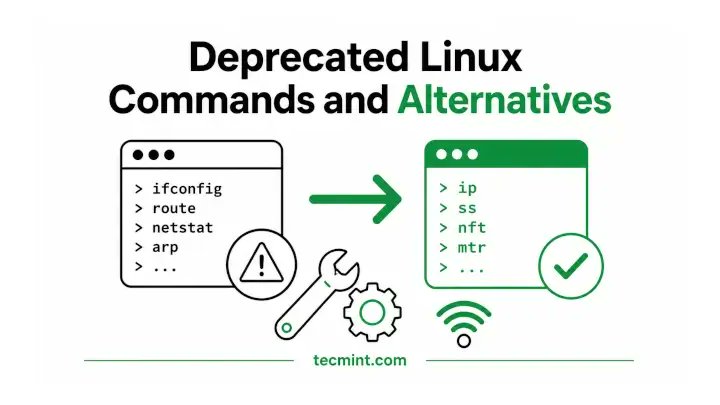
Replace Old Linux Commands with Modern Alternatives.
Learn which Linux commands are deprecated, why they're no longer recommended, and the modern alternatives like ip, ss, nft, rsync, and mtr that every Linux user should know.
Read here: https://t.co/dVKwnQJemF
👉 Follow @tecmint for daily #Linux, #LinuxCommands, #SysAdmin, #DevOps, and #OpenSource tips!
#NanoKVM-Go is launching soon on #Kickstarter!
World First AI-Native 4K USB-C Remote KVM, starting from only $49!
Built for WFH, family or IT remote support, and AI-Natives.
Tiny size. Hardware-level control. Big surprises.
Follow now for launch updates!
https://t.co/IdBNtBAGsZ
🎁 Giveaway alert: Win a ZimaBoard 2 and start your homelab for FREE.
We're teaming up with @ZimaSpace to give away a one-of-a-kind It’s FOSS × ZimaBoard 2 1664 Edition. And yes, only ONE exists.
Powered by Intel N150 with dual 2.5GbE networking and PCIe expansion, it's perfect for:
✅ Self-hosting
✅ Docker & Homelab projects
✅ NAS & Media Servers
✅ Linux experiments
How to enter:
1️⃣ Follow @ZimaSpace
2️⃣ Follow @ItsFOSS
3️⃣ Like and repost this post
📅 Giveaway runs from June 3 to July 3, 2026
🎲 One winner will be selected at random and contacted via DM on July 7
🌍 Open worldwide
Good luck, and may the odds be in your favor! 🚀
USB C cables all look the same, so how does your computer know the difference between them?
Turns out there’s a tiny chip inside most USB C cables that identifies its capabilities. Someone made an open source app that uses that chip to list out the info so you never have to confuse cables again.
Proxmox VE 9.2 introduces a dynamic load balancer, expanded SDN support, custom CPU model management, and an updated Debian 13.5-based stack.
https://t.co/QU4QkeeC4t
#Proxmox#VIrtualization#OpenSource
HOW TO INSTALL LINUX – a full breakdown.
Understand the risks first. It’s not a plug-and-play upgrade. You can lose data, brick your bootloader, encounter hardware incompatibility, and spend hours fixing things you didn’t break. In some corporate or locked-down environments, installing a different OS can violate policies or warranties.
Step 1: Back up everything. Not optional. Copy your personal files to an external drive or cloud storage. If you mess up partitioning, your documents, photos, and saved passwords are gone. Assume you will mess up.
Step 2: Choose your distribution. Beginners should start with Ubuntu, Linux Mint, or Fedora. These have large communities and good hardware support. Avoid "hacker" distros like Kali or Arch unless you already know what you’re doing. They are not for daily driving.
Step 3: Create a bootable USB drive.
· Download the Linux ISO file from the official distribution website – not a random mirror.
· Use Balena Etcher, Rufus (Windows), or the dd command (Linux/macOS) to write the ISO to a USB stick (minimum 4GB). This will wipe the USB drive completely.
Step 4: Disable Secure Boot (sometimes). Restart your computer, enter UEFI/BIOS (usually F2, F12, Del, or Esc during boot). Find Secure Boot and disable it if Linux won’t boot. Some distros support Secure Boot, but disabling avoids headaches. Also change boot order to prioritize USB.
Step 5: Boot into the live environment. Insert the USB, restart. You should see a menu: "Try Linux" or "Install Linux." Try it first. Test Wi-Fi, sound, resolution. If something doesn’t work on the live USB, it likely won’t work after install.
Step 6: Install – the dangerous part.
Select "Install Linux." You’ll reach partitioning. This is where people destroy Windows.
· Option A (safe for beginners): "Install alongside" – resizes your existing OS automatically. Works but can fail.
· Option B (dual boot manually): Shrink your main partition from within Windows first (Disk Management), then install Linux into the free space.
· Option C (replace everything): "Erase disk and install" – nukes your current OS. Only do this if you hate your old system and have backups.
Do not guess partition sizes or formats. If you don’t understand ext4, swap, or EFI vs MBR, stick to the automatic installer.
Step 7: Complete setup. Choose a username and a strong password (not empty – ever). Select your time zone. Don’t check “encrypt disk” unless you understand passphrase recovery – lose the passphrase, lose all data.
Step 8: Update immediately. After booting into your fresh Linux install, open the terminal and run:
sudo apt update && sudo apt upgrade (Debian/Ubuntu) or your distro’s equivalent. This patches security holes. Do it before connecting to public Wi-Fi.
Protect yourself absolutely.
· Don’t copy-paste random terminal commands from YouTube or forums without understanding them. sudo rm -rf /* deletes your system.
· Stick to the official software repository. Avoid adding untrusted PPAs or downloading .deb files from random sites.
· Keep Windows on a separate drive if possible – Linux can boot from an external SSD safely.
Alternatives if you’re not ready:
· Run Linux in a virtual machine (VirtualBox, VMware) – zero risk to your host OS.
· Use Windows Subsystem for Linux (WSL) if you just need command-line tools.
· Buy a cheap used laptop and experiment there.
Final and most important step: Think about why you’re doing this. If it’s for privacy, learning, reviving old hardware, or escaping Windows ads – legitimate reasons. If it’s to feel like a hacker, to run random exploits, or because someone said it’s “more secure” without you understanding security – don’t. You will confuse yourself and maybe lose your files.
This is educational. Proceed with caution, or better yet, try it in a virtual machine first.
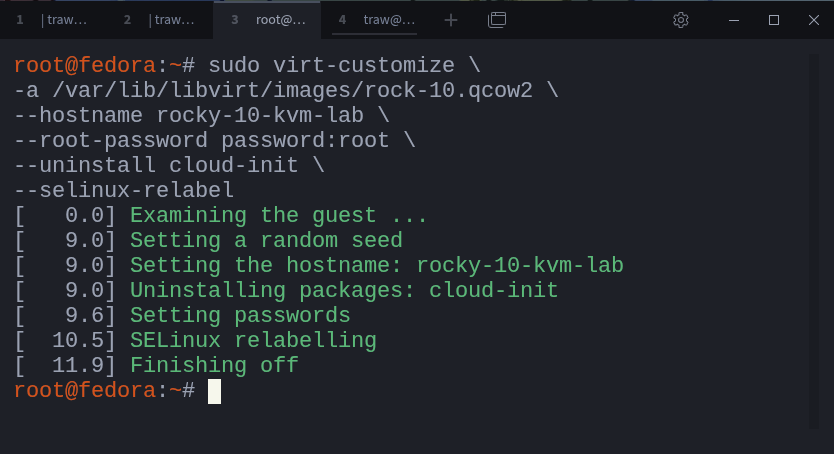
Spin Up Linux Virtual Machines Quickly with KVM Using Cloud Images
When most people start with virtualization, they reach for tools like VirtualBox or VMware.
You install the software, open the interface, create a new virtual machine, attach an ISO, and go through the operating system installation step by step.
It works.
Linux also provides a native virtualization stack built around KVM and QEMU.
With it, you can work directly with virtual machine disk images and build systems in a faster and more flexible way.
Instead of performing a full operating system installation each time, you can start from an existing image, prepare it for your environment, and run it as a virtual machine.
This approach is common in real-world environments where systems need to be created quickly, tested, replaced, or rebuilt without repeating the same installation process each time.
In this guide, you will use KVM to build a simple lab environment by importing and working with disk images.
You will go through the process step by step, from preparing the image to creating the virtual machine and accessing it.
Continue reading:
https://t.co/v3D7amyhSV
antiX Linux 26 arrives based on Debian 13 Trixie with five init systems, a systemd-free design, and a fast, lightweight environment built for efficiency.
https://t.co/lXvOXZLB3u
#Linux#OpenSource
🐧 Linux: A Distribution for Everyone 🐧
One of Linux’s greatest strengths is choice. Whether you’re brand new, a developer, or a hardcore power user, there’s a distro built for you.
🔹 Ubuntu
Best for: Beginners & everyday users
• Easy to install
• Massive community support
• Great for desktops, laptops, and servers
🔹 Linux Mint
Best for: Windows switchers
• Familiar desktop layout
• Lightweight and fast
• Excellent out-of-the-box experience
🔹 Fedora
Best for: Developers & tech enthusiasts
• Cutting-edge features
• Backed by Red Hat
• Clean, modern Linux experience
🔹 Debian
Best for: Stability lovers & servers
• Rock-solid reliability
• Huge software repositories
• Ideal for long-term systems
🔹 Arch Linux
Best for: Advanced users & tinkerers
• Full control and customization
• Rolling release model
• Learn Linux deeply by building it yourself
🔹 Manjaro
Best for: Arch power without the pain
• User-friendly Arch-based distro
• Great hardware support
• Fast and flexible
🔹 Pop!_OS
Best for: Creators, gamers, and developers
• Optimized for productivity
• Excellent NVIDIA support
• Clean and efficient workflow
✨ No ads. No forced updates. No lock-in.
Linux puts freedom, control, and performance back in your hands.
Which distro do you use—or want to try next? 🐧💻